Uninstalling EndNote
Before you remove EndNote, back up your libraries and any other files you have created or customized.
To uninstall EndNote
- Make sure no applications are running.
- Start EndNote. Close open files, such as libraries, connections files, filters, or styles.
- From the EndNote 2025 menu, select Customizer.
- Click Uninstall and then confirm with Yes. You may need to provide your Mac password.
- When the uninstall is done, click Exit.
- Drag the EndNote folder (typically found in the Applications folder) to the trash.
To manually uninstall all EndNote files:
- Start by dragging the entire EndNote 2025 folder in //Applications to the trash.
- To remove Cite While You Write files, delete the EndNote CWYW Word xx.bundle file in Microsoft Word’s Startup folder (the "xx" in the file name will show your version of Word instead). The location of the Word startup folder may vary. For example, for Office 365 you can find the folder by opening Macintosh HD > Library > Application Support > Microsoft > Office365 > User Content > Startup > Word.
The Macintosh HD > Library > Application Support > Microsoft part of this should be the same for all Microsoft Office installations, but there may be differences for the rest depending on your version of Office. - For help in removing the Pages plug-in, contact Apple's technical support. Apple created the plug-in for Pages; the plug-in is not a Clarivate product.
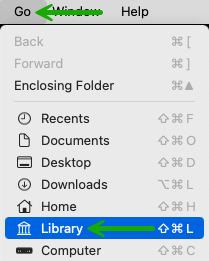
Note: The removal options above do not require viewing the contents of any hidden macOS folders. However, the removal options below will require accessing the hidden User Library folder. To select this folder, open a Finder window, select the Go menu and hold down the Option key at the same time. You should then see Library appear on the menu, as shown below. Continue holding down the Option key as you click on Library; if you stop holding down the key, Library will be removed from the list. After the Library folder opens, you can let go of the Option key.
Take care working in this folder. Much like the Windows registry, mistakes made here could negatively affect your user experience.
- To remove Reference Type definitions and other preferences, delete the //Library/Application Support/EndNote folder (just the EndNote folder).
- To remove cache files, delete the com.ThomsonResearchSoft.EndNote file found in the //Library/Caches folder.
- To remove the EndNote preference files, delete the com.ThomsonResearchSoft.EndNote.plist and com.ThomsonReuters.EndNoteCustomizer.plist files in the //Library/Preferences folder.