Changing Existing Citations
Editing Citations in Apple Pages
Once you have inserted a citation, you cannot edit it directly. However, you can almost always get EndNote to format your citations exactly to your specifications by editing the style, the EndNote reference, or the citation (as described below).
To safely edit a formatted citation:
- Click on the citation you wish to change. You should see a dialog similar to the one below.
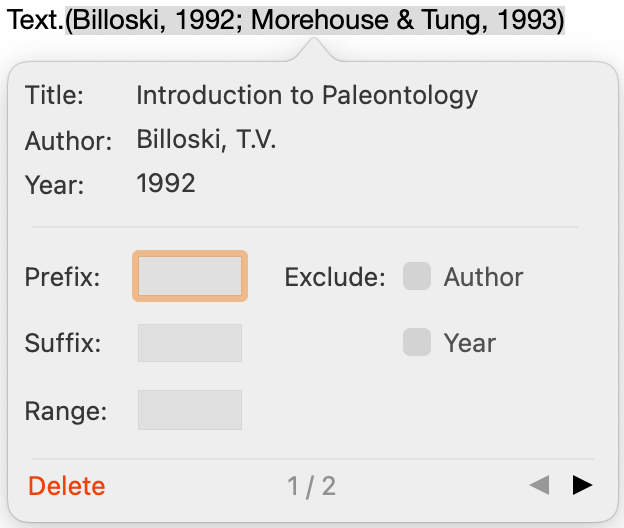
- The example is a grouped citation, with two references in it, so it shows the number of the showing reference and the total number of references at the bottom, with arrows to allow moving between the references. This dialog contains the following editing options:
- Prefix: Enter text here to print immediately before the citation text (spaces are significant).
- Suffix: Enter text here to print after the citation text (spaces are significant).
- Range: Enter a page number or a range of page numbers to appear in the citation. The EndNote style must include the Cited Pages field for these numbers to appear in the formatted citation.
- Exclude: Author: Select this to omit the author name from the formatted citation.
- Exclude: Year: Select this to omit the date from the formatted citation.
- Delete: Select this to delete the citation from the paper. It will be removed from the grouped citation and from the bibliography at the end of the document (unless it also appears somewhere else in the document).
- Click outside the dialog to close it.
Note: When a citation in initially inserted, there is an option to have the reference inserted only in the bibliography. Although that option is not available in the Edit Citation window, selecting both the Exclude Author and Exclude Year options will have the same effect for Author-Date citation formats so long as no prefix, suffix, or page numbers are present.
Adding References to an Existing Citation in Apple Pages
To add a reference to an existing citation, insert the new reference immediately before or after the existing citation. (If you try to insert it within the citation, it will replace the existing citation.)
Adjacent citations are merged:
(Argus, 1984; Hockney and Ellis, 1996)
If you want the references formatted separately, leave a space between them:
(Argus, 1984) (Hockney and Ellis, 1996)
Moving or Copying Citations in Apple Pages
You can highlight any text that includes citations, then use the Cut or Copy, and then Paste commands to add it elsewhere in the document.
To move or copy only the citation itself, make sure you highlight the entire citation (including any surrounding delimiters). Then, Cut (⌘+X) or Copy (⌘+C), and then Paste (⌘+V) it elsewhere in the document.
Deleting Citations in Apple Pages
To delete a single formatted citation:
- In Pages, click twice (slowly) in the citation you want to delete, to select the entire citation but not show the Citation-Editing Dialog, and then press the Delete or Backspace key on your keyboard. Clicking on the citation twice should select the entire citation, including all coding.
The citation will be removed from the text of the paper and from the bibliography.
To delete a citation from a grouped citation:
- In Pages, click on the citation you wish to delete. You should see a dialog similar to the one below.
- Use the arrows at the bottom-right of the dialog to move to the citation you want to delete from the group.
- When the citation you wish to delete is showing in the dialog, click the Delete button.
The citation will be removed from the grouped citation and from the bibliography.