How to Cite While You Write in Google Docs
The steps required to cite a reference and generate a bibliography with Google Docs are given below.
First, open the EndNote sidebar and set your viewing options:
- Open the document you are writing in Google Docs to enable the Google Docs toolbar.
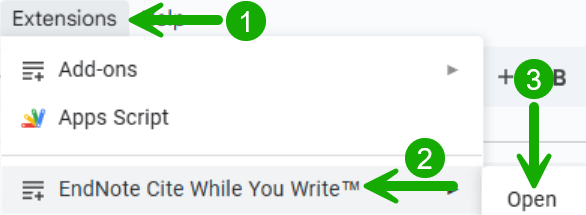
- Open the EndNote extension in your browser by selecting 1) Extensions on the toolbar, 2) the EndNote Cite While You Write extension, and 3) Open.
- If prompted, log in to your EndNote Web account within Google Docs. When you are logged in, you should see the EndNote sidebar appear at the right of the screen, showing the references in your EndNote Web library. You will only see your own custom groups and references. Groups shared with you will not be available.
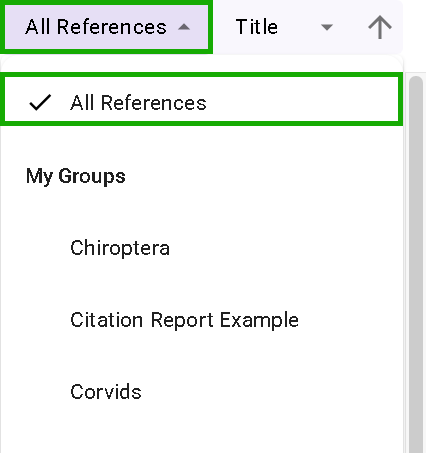
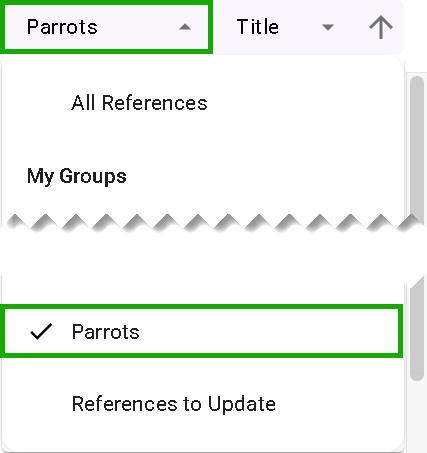
- If you wish to limit your search for references to a specific custom group in your library, select the All References drop-down list, and then select the group you want from the list. The All References label will then change to the name of your group, as in the example below.
When you have arranged the add-on sidebar to your preferences, you are ready to begin citing references.