Editing Citations in Word Online
Sometimes citations require page numbers, prefix text, or suffix text. This is especially common with author-date formats, but may occasionally be needed for other formats, too. You can easily customize your citations to include these features, as well as to remove citations from the document, if needed.
Citations cannot be edited by typing or deleting text inside the citation. Any such change would disappear the next time the citations were updated. All changes inside a citation must be made using the tools in the EndNote sidebar.
Note: If multiple people are editing a shared document, Word Online controls whose changes are considered the "last saved," not EndNote.
There are two ways to open a citation for editing: 1) use the Manage citations button on the sidebar, or 2) click on the citation in the document to directly open that citation for editing.
Using the Manage Citations Button to Edit Citations
- If you have not already done so, open your document and the EndNote add-on in Word Online. (See How to Cite While You Write in Word Online.)
- After inserting your reference(s) and updating the citations and bibliography (see Inserting References in a Word Online Document), select Manage citations in the sidebar. The sidebar will update to show all the citations in your document. If you have grouped citations, citations with more than one reference in them, you may not see all references in the citation. Hover over the citation in the list to see the references in the grouped citation.
- To see the details on a citation and edit it, select the Edit citation (
 ) button by a citation in the list. The references in the selected citation will be displayed similarly to the screenshot below. The Edit citation option is selected, and the following changes can be made to the citation.
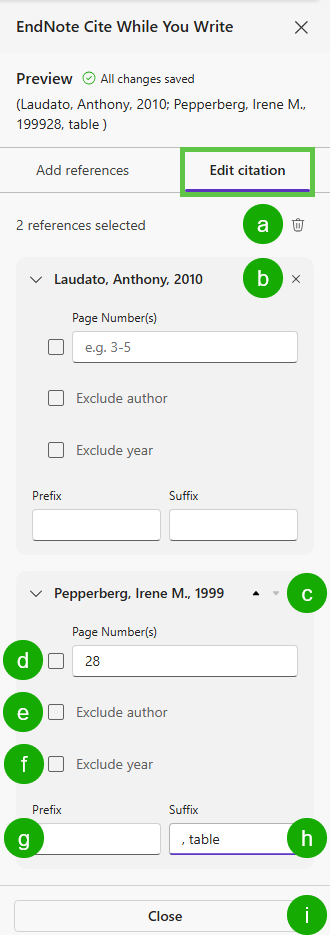 |
a. | The small trash can button will allow you to remove the entire citation from the document. |
| b. | The small x button will allow you to remove that reference from a grouped citation, leaving the other references in the citation intact. | |
| c. | If you wish to change the sorting order of the references within the grouped citation, use the Up and Down buttons to change the order. Please note this will not change the order for styles that have a required sorting order for within grouped citations, such as the APA style. | |
| d. | Add or change page numbers for the reference using the Page Number(s) field. (See example at left.) | |
| e. | Exclude the author for the reference using the Exclude author field. | |
| f. | Exclude the year for the reference using the Exclude year field. | |
| g. | Add a prefix to the citation using the Prefix field. Note that spaces and punctuation must be included. | |
| h. | Add a suffix to the citation using the Suffix field. Note that spaces and punctuation must be included. (See example at left.) | |
| i. | When finished editing, click the Close button to close the citation. Click the Update citations & bibliography button to apply the changes to the citation in the document |
Note: If the author and year are excluded when using an author-date citation style, a citation will not appear in the document but the reference will appear in the bibliography. However, if the author and year are excluded in an author-date citation style but page numbers are included, only the page numbers will appear in the citation and the reference will appear in the bibliography.
Opening the Citation for Editing with a Single Click
- If you have not already done so, open your document and the EndNote add-on in Word Online. (See How to Cite While You Write in Word Online.)
- After inserting your reference(s) and updating the citations and bibliography (see Inserting References in a Word Online Document), click on a citation in the document to select it and automatically open the Edit citation dialog. For footnotes or endnotes, click on the footnote or endnote number in the document. Use the information above to edit the references in the selected citations.
Adding References to an Existing Citation
To add a reference to an existing citation in the document without using Manage citations, place your cursor next to the existing citation, with no space between the cursor and the citation, and enter the reference as you normally would. The reference will be inserted next to the existing citation as a temporary citation and will be merged with it when the citations are updated (If there is a space between your reference and the existing citation, a new citation will be created instead of adding your reference to the existing citation.) (See Inserting References in a Word Online Document.)
To add references to an existing citation in the document using Manage citations:
- With your document open in Word Online, select Manage citations in the sidebar.
- Click the Edit citation () button by the citation in the list that you want to add references to, and then click the Add references button.
- Select the references from the list to add to the selected citation. For information about searching for references and limiting the search to specific groups, see Inserting References in a Word Online Document.
- Click Close to return to the Manage citations dialog.
- Click the Update citations & bibliography button to update the citation(s) in your document.
Removing References from a Document
To remove a reference from a citation in the document, select the citation, then click the Remove reference (x) button in the Edit citations dialog, as shown below.

To remove an entire citation from the document:
- Select the citation in the document.
- In the Edit citation dialog, click the Remove citation button (the small trash can
 ) for the citation.
 - A confirmation dialog will appear. To remove the citation, click OK. The citation will be removed from the document.